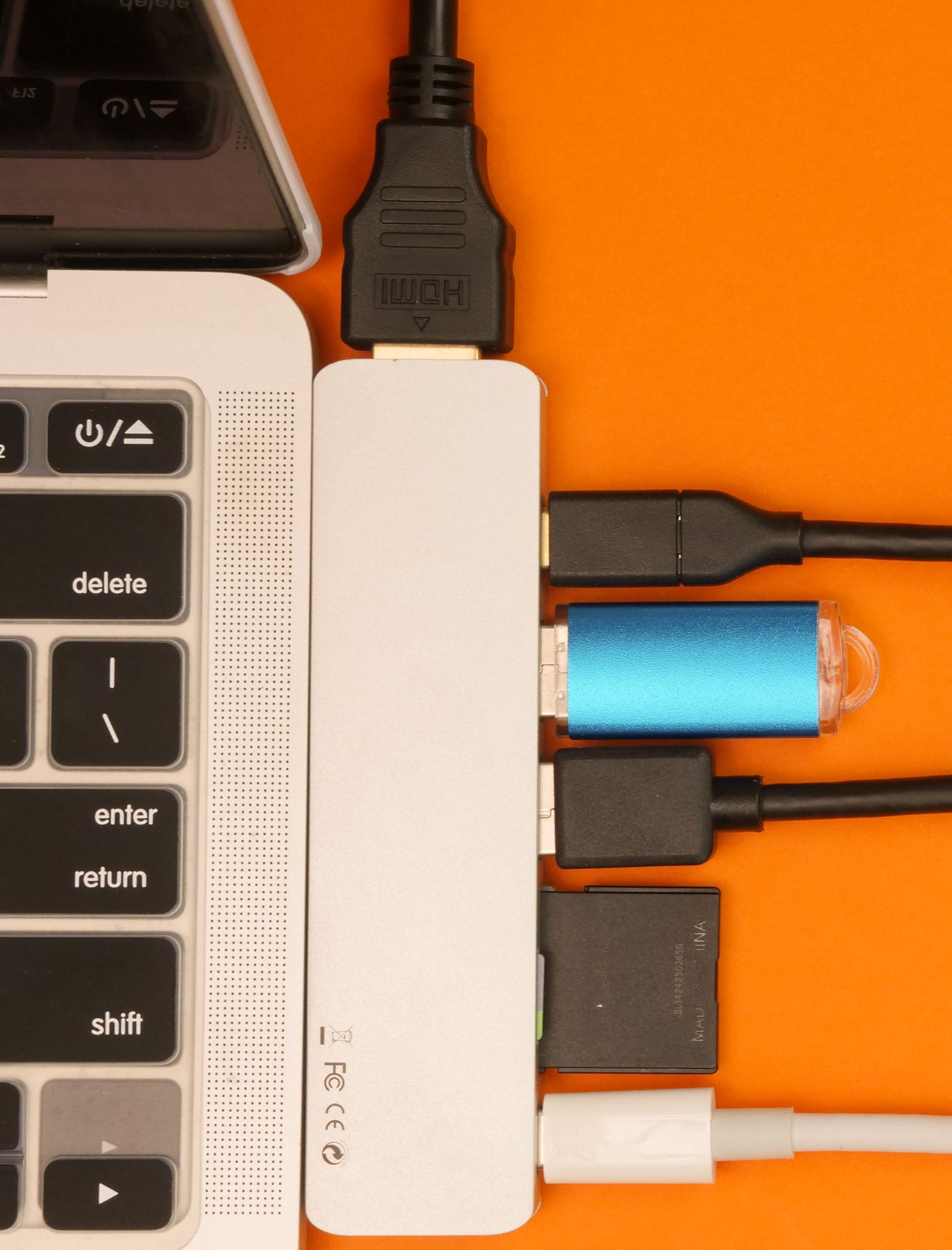
A dock should connect a workstation with fewer steps. Socket count alone does not establish whether displays, charging and accessories will operate together as intended. A useful comparison needs the exact laptop version and a list of the equipment you will attach.
Draw the connection chain
For every accessory, record its connector and purpose. A monitor does not require the same connection as a mouse, and external storage may introduce different needs again. Mark which devices must work simultaneously. Numerous sockets offer little benefit when important functions cannot be supported together.
Record the laptop's precise model and verify the capabilities of the intended port. USB-C connector shape does not answer every question. Manufacturer information about display output, data and power is necessary. Dell's dock overview, for example, points to model-specific manuals covering display count, power delivery and operating-system compatibility.
Use that information for the actual comparison rather than treating it as a universal promise across brands. A dock may broadly work with several computers while limiting particular functions. Ask questions using all relevant model identifiers. Saying only that a laptop has USB-C is often insufficient for a dependable answer.
Assess displays together
Record the desired resolution, refresh rate and input for each monitor. Check the explicitly supported combination of dock, laptop and operating system. Two display sockets do not prove that two screens can operate at every desired setting simultaneously.
Distinguish an extended desktop from mirrored pictures. Working on different documents across two monitors requires an appropriate extension arrangement, not simply the same picture twice. The description should cover the intended use. If additional software is necessary, verify its requirements and whether installation is permitted on your work computer.
Include the cables. A suitable monitor and dock can still fail to provide the expected arrangement through an unsuitable cable. List all required cables in the cost calculation. Existing components are usable at no additional cost only when their capabilities actually meet this setup's requirements. Their physical fit alone is insufficient evidence.
Clarify charging while working
Check the power actually available to the laptop rather than only the total rating of a supplied power adapter. The dock and connected accessories can have their own requirements. The laptop manufacturer specifies appropriate power arrangements for intended use. Do not apply one universal wattage to every computer.
If the laptop also needs its own charger, the dock may still be worthwhile. It simply is not a complete single-cable arrangement. Make that distinction visible before buying instead of discovering the second connection as an unexpected shortcoming. At a fixed desk it may be acceptable; with frequent moves it may carry greater weight.
Include layout and software
Examine socket positions. Frequently changed cards or drives may be easier to reach at the front, while permanent connections can be tidier behind. A very short fixed host cable also determines where the dock can sit. Check whether the proposed location works with the laptop port without putting tension on the cable.
Read operating-system, driver and update information. If you alternate between personal and business computers, assess each arrangement separately. Successful use with one computer does not establish compatibility with the other. For managed work devices, resolve any installation requirements before purchase.
Price the completed arrangement
Compare dock, power supply, cables and required adapters as a package. Remove sockets with no planned use from the reasons favouring a model. A simpler product may be sufficient when it supports the essential connections; extra ports may be worthwhile when a specific expansion is already planned.
After delivery, check simultaneous operation with your own devices and normal tasks. Record model combinations and settings if something does not work, then use the agreed support route. The appropriate dock is the one that connects your actual workstation. Maximum socket count is only one part of its description, not evidence that every intended function has been covered.
Keep the verified connection list with the dock identifier. If another monitor is added later, it becomes clear which assumption has changed. A previously suitable dock is not necessarily faulty when a new combination exceeds its documented limits. Reassess that expansion before buying more adapters.